
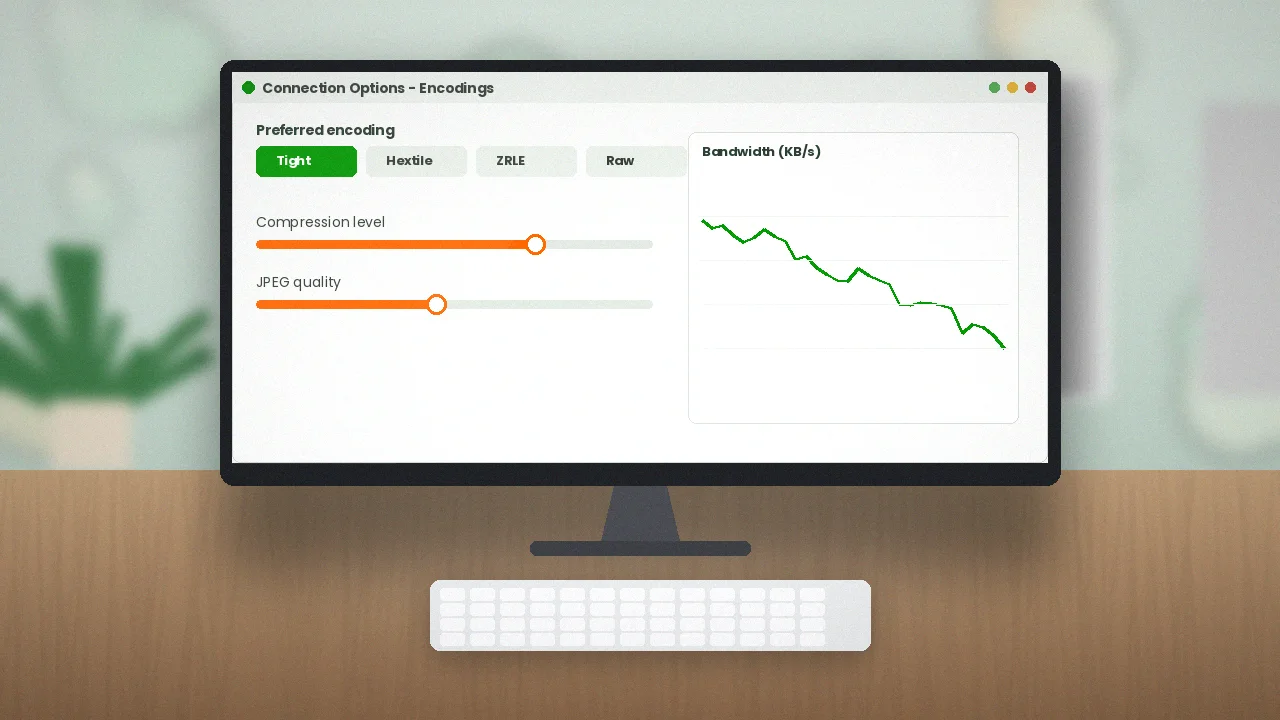
A remote session that lags behind every mouse movement quickly becomes frustrating. Fortunately, TightVNC offers a set of controls that allow you to balance speed against image quality for any connection, from a gigabit office network to a weak mobile signal. This guide explains how Tight encoding works, what each performance setting changes and which combinations suit common scenarios.
Why VNC Performance Varies
VNC transmits pictures of the screen rather than the commands that draw them. Whenever part of the remote screen changes, the server must capture that area, encode it and send it to the viewer. Three factors therefore dominate performance:
- Bandwidth, the amount of data the connection can carry each second.
- Latency, the delay before each piece of data arrives, which affects how responsive input feels.
- Screen activity, the amount of the display that changes and how complex those changes are.
You cannot change the speed of the network from within TightVNC, but you can greatly reduce the amount of data each update requires, and you can reduce the amount of change on the remote screen.
How Tightvnc Encoding Works
An encoding is the method used to represent screen updates. VNC supports several, and the viewer tells the server which ones it prefers.
| Encoding | Characteristics | Best for |
|---|---|---|
| Tight | Adaptive zlib compression with optional JPEG for photographic areas | Most connections, particularly slower ones |
| Hextile | Divides the screen into tiles with light compression | Fast local networks with low processor budgets |
| ZRLE | Run-length encoding combined with zlib | Compatibility with other VNC software |
| Raw | Uncompressed pixels | Extremely fast links, or diagnosis only |
Tight encoding analyses each updated rectangle. Areas of flat colour, such as window backgrounds and text, are compressed losslessly with zlib, which handles them very efficiently. Areas with photographic detail, such as images and gradients, can be compressed with JPEG, which achieves far smaller sizes at the cost of some precision. This adaptive approach is why Tight encoding performs so well across varied content.
Compression Level
The compression level, typically adjustable from 1 to 9, sets how hard the zlib stage works. Higher levels produce smaller updates but require more processor time on both computers.
- On a slow connection, use a high level such as 8 or 9. Bandwidth is the bottleneck, so spending processor time to save data is worthwhile.
- On a fast local network, use a low level such as 1 or 2. Bandwidth is plentiful, and lighter compression reduces delay.
- On an older host that struggles during sessions, lower the level to reduce processor load, even if it costs some bandwidth.
JPEG Quality
The JPEG quality setting controls lossy compression for photographic areas. Lower values produce smaller updates and visible artefacts; higher values preserve detail. For general office work, a middle value around 5 or 6 offers a good compromise. For work that depends on accurate images, such as photo editing or design review, raise the quality or disable JPEG compression altogether, accepting the extra bandwidth. For pure administration over a weak link, a low quality value is perfectly acceptable because text areas are still compressed losslessly.
Colour Depth
Reducing the number of colours is one of the most effective measures on a slow link. Full colour uses up to 24 bits per pixel, while 256 colours uses only 8 bits, roughly a third of the data before compression. The picture looks less refined, with banding in gradients, but menus, text and dialogs remain perfectly usable. Restricting colours is ideal for configuration and troubleshooting tasks where visual fidelity hardly matters.
Reducing Activity on the Remote Screen
The less the remote screen changes, the less there is to send. Several settings help considerably.
- Hide the desktop wallpaper. TightVNC Server can replace the wallpaper with a plain colour during sessions. A detailed photograph behind every window is expensive to transmit whenever any portion is redrawn.
- Turn off visual effects. In Windows, open System Properties > Advanced > Performance Settings and choose Adjust for best performance, or disable animations, shadows and transparency individually.
- Close unnecessary animated content, such as video in a background browser tab or animated advertisements.
- Lower the remote resolution if appropriate. Fewer pixels mean less data for every full-screen update.
Server-Side Capture Settings
On the host, the screen polling interval controls how often the server checks for changes. A shorter interval makes motion smoother but uses more processor time; a longer interval reduces load but makes updates appear in steps. If the host is an older computer that becomes sluggish during sessions, lengthening the interval modestly often restores balance. Options related to capturing layered or transparent windows can also affect processor usage on some systems. The server configuration guide describes these settings.
Viewer-Side Settings That Help
- Local cursor rendering. Allowing the viewer to draw the pointer locally makes mouse movement feel immediate, because the pointer moves without waiting for screen updates.
- Scaling. Scaling happens on the viewer and does not reduce network traffic. Lowering the remote resolution saves bandwidth; scaling the viewer window does not.
- Connection profiles. The low-bandwidth and high-speed presets in the viewer connection dialog apply sensible combinations instantly.
Recommended Tightvnc Settings by Scenario
Fast office network
Tight or Hextile encoding, compression level 1 or 2, high JPEG quality or JPEG disabled, full colour, wallpaper hidden for consistency.
Home broadband to office
Tight encoding, compression level 6, JPEG quality 6, full colour, wallpaper hidden, Windows visual effects reduced on the host.
Mobile connection or congested link
Tight encoding, compression level 9, JPEG quality 3 or lower, 256 colours, wallpaper hidden, remote resolution lowered where possible.
Older host computer
Tight encoding with a moderate compression level, longer polling interval on the server, visual effects disabled, and only the applications needed for the task left running.
Measuring the Effect of Changes
Adjust one setting at a time and observe the result, so you know which change made the difference. A practical test is to drag a window slowly across the remote screen and scroll a long document. If movement is choppy, increase compression or reduce colours. If text looks blurred, raise JPEG quality. Windows Task Manager on both computers shows network throughput and processor usage, which reveals whether the bottleneck is the link or the hardware.
When Tuning Is Not Enough
If sessions remain slow after careful tuning, the cause may lie outside TightVNC. High latency over long distances limits responsiveness regardless of compression. Wi-Fi interference, overloaded VPN servers and saturated upload bandwidth at the host’s location are common culprits. Check the host’s upload speed in particular, because the server sends far more data than it receives. The troubleshooting guide covers these wider causes.
Latency Versus Bandwidth
It is worth distinguishing clearly between bandwidth and latency, because they call for different remedies. Bandwidth is capacity: how much data can travel each second. Latency is delay: how long each piece of data takes to arrive. A connection can have abundant bandwidth and still feel sluggish because of high latency, as is common on long international routes or satellite links.
Compression and colour reduction address bandwidth. They do little for latency, because each update still has to make the journey. When latency is the main problem, the most effective measures are those that reduce the number of round trips you depend on: local cursor rendering, keyboard shortcuts rather than precise mouse movements, and working in larger, deliberate actions rather than many small ones. A VPN or tunnel endpoint located close to the host can also help, as can avoiding unnecessary relays.
A simple way to gauge latency is to run ping against the host or the VPN gateway. Round-trip times below about 50 milliseconds feel almost local; values above 150 milliseconds make interaction noticeably delayed regardless of compression settings.
Balancing Quality and Speed for Different Tasks
The ideal settings depend not only on the connection but also on the work. Reviewing a photograph or a design mock-up needs high fidelity, so raise JPEG quality and colour depth temporarily even if the session becomes slower. Editing configuration files, reading logs or managing services needs only legible text, so heavy compression and reduced colours are perfectly appropriate. Because the viewer lets you change options during a session, switch profiles as the task changes rather than settling on a single compromise for everything.
Many administrators keep two saved connections for important hosts: one tuned for speed and one tuned for quality. Choosing between them takes a moment and saves considerable frustration.
Next Steps with Tightvnc
Thoughtful tuning turns a sluggish session into a comfortable one. Begin with Tight encoding, hide the wallpaper and choose compression according to the speed of the link. Adjust JPEG quality and colour depth to the task at hand, and remember that reducing activity on the remote screen often helps more than any single setting.