
Most TightVNC problems have simple causes, but the symptoms can be confusing: a connection that times out, a password that is rejected, a black window or a session that crawls. The quickest route to a solution is a methodical one that checks each layer in turn instead of changing several settings at once. This guide groups common problems by symptom and explains the likely causes and fixes for each.
A Methodical Approach to Tightvnc Problems
Every successful session depends on a chain of conditions. The server must be running, the network must allow the connection, the server must accept the viewer, authentication must succeed and the display must be captured correctly. When something fails, work through that chain from the beginning.
- Is TightVNC Server running on the host?
- Is the viewer using the correct address and port?
- Does the host’s firewall permit the connection?
- If connecting from outside, does the router or tunnel deliver the traffic?
- Do the server’s access control rules permit this viewer?
- Is the password correct?
- Is the display captured properly once connected?
Connection Refused or Timed Out
These are the most common errors, and they indicate that the viewer never reached a working server.
Check that the server is running
On the host, look for the TightVNC icon in the notification area or confirm the service in services.msc. Then confirm the server is listening:
netstat -an | find "5900"
TCP    0.0.0.0:5900    0.0.0.0:0    LISTENING
If nothing is listening, start the service or the application. If the service fails to start, another VNC product may already be using the port; remove it or change TightVNC’s port.
Check the address and port syntax
Remember that a single colon indicates a display number and a double colon a literal port. To reach port 5901, enter host::5901 or host:1, not host:5901. The viewer connection guide explains this syntax in full.
Check the firewall
From another computer on the same network, test the port:
Test-NetConnection 192.168.1.24 -Port 5900If the test fails while the server is listening, the host’s firewall is blocking the connection. Add or correct the inbound rule, making sure it applies to the active network profile. A network marked Public in Windows often explains why a rule limited to Private has no effect. The ports and firewall guide walks through the configuration.
Check the route from outside
If local connections work but remote ones fail, the problem lies in the router, the VPN or the SSH tunnel. Confirm the forwarding rule or tunnel destination, and check whether the internet provider uses carrier-grade NAT, which prevents inbound forwarding entirely.
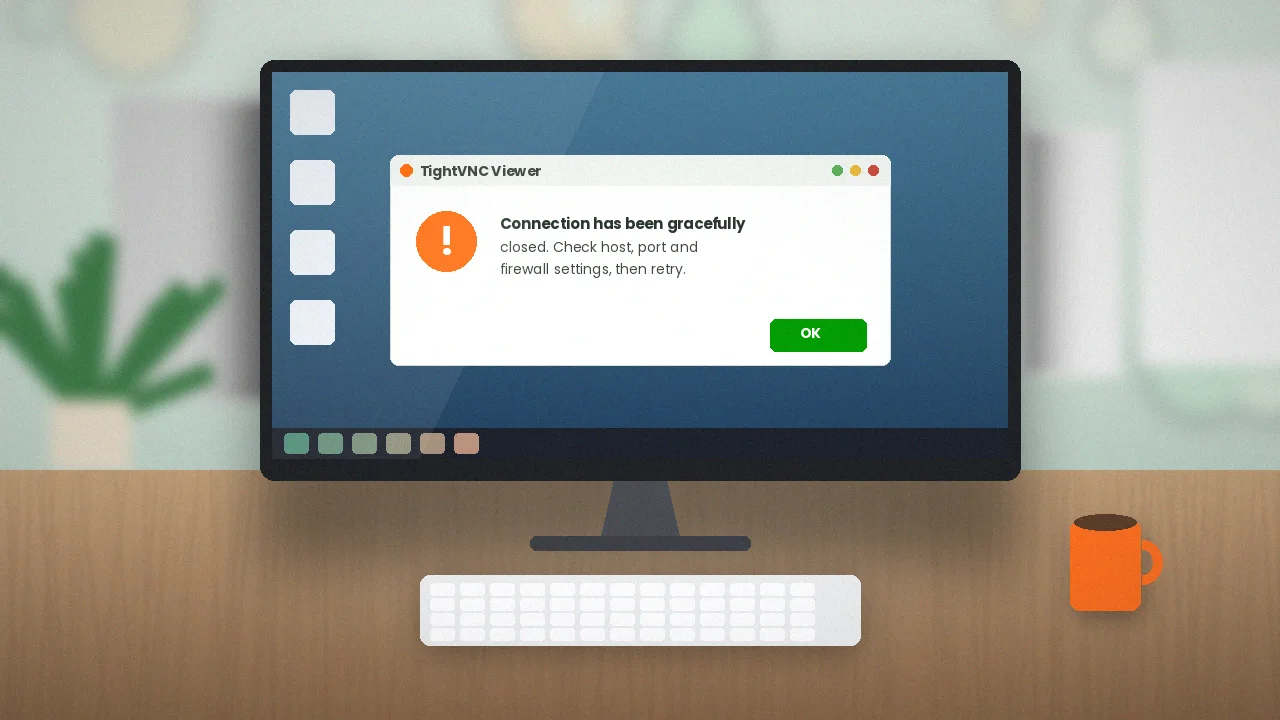
“Connection Has Been Gracefully Closed”
This message means the viewer reached the server, but the server ended the connection deliberately. The usual causes are:
- Access control rules that deny the viewer’s address. Review the Access Control tab and the order of its rules.
- Loopback restrictions when connecting through an SSH tunnel. If tunnelled traffic arrives from
127.0.0.1, loopback connections must be allowed. - Query timeout when the server asks the local user to accept connections and nobody responds in time.
- Sharing policy that refuses new viewers while another session is active.
- Too many failed attempts, after which the server may temporarily block further connections from that address.
The server configuration guide explains each of these settings.
Authentication Failures in Tightvnc
If the password is rejected, first confirm that you are using the primary password rather than the administrative one, which serves a different purpose. Remember that classic VNC authentication uses only the first eight characters; if a longer password was set, characters beyond the eighth are ignored, which can cause confusion when passwords are retyped differently.
Check the keyboard layout and Caps Lock on the viewer computer. If the password may have been changed, an administrator at the host can set a new one in the server configuration. Saved connection files may hold an outdated password; connect manually to rule this out.
Black, Grey or Frozen Screen
When the session connects but the picture is black, grey or static, the server is not capturing the display correctly.
- The host display is off or disconnected. Some computers, particularly those without a monitor attached, provide no active display to capture. A display emulator plug, sometimes called a dummy plug, or a virtual display driver resolves this on headless machines.
- A desktop switch occurred. Transitions such as the sign-in screen or a User Account Control prompt can interrupt capture. Disconnect and reconnect.
- Application mode after sign-out. In application mode the server stops with the user session; use service mode for unattended access, as explained in the service mode guide.
- Graphics driver issues. Update the host’s graphics driver and keep TightVNC current.
- Remote sleep. If the host has gone to sleep, the session cannot continue. Adjust its power settings.
Slow or Choppy Sessions
Lag usually reflects limited bandwidth, high latency or heavy screen activity. Use Tight encoding, raise compression on slow links, lower JPEG quality, reduce colour depth and hide the remote wallpaper. Disable Windows visual effects on the host and close animated content. Check the host’s upload speed, because the server sends far more data than it receives. The performance tuning guide explains each setting and offers recommended combinations.
Keyboard and Mouse Problems
Wrong characters appear
The keyboard layouts on the two computers differ. Set both to the same layout during the session, or adjust the remote layout to match your physical keyboard.
Shortcuts do not reach the remote computer
Combinations such as Ctrl+Alt+Del are handled by your local system. Use the viewer toolbar to send them. Full-screen mode passes more shortcuts through to the remote computer than windowed mode.
Input is ignored entirely
You may have connected with the view-only password, or the viewer’s view-only option may be enabled. The server can also be configured to block remote input. Check each of these.
Input does not work in elevated windows
In application mode, the server may be unable to control windows running with administrator rights. Running the server as a service resolves this in most cases.
Clipboard and File Transfer Issues
If text does not pass between computers, confirm that clipboard transfer is enabled in both the viewer and server settings. If file transfer is unavailable, make sure both sides are TightVNC for Windows and that the feature has not been disabled. Permission errors usually mean the server’s account cannot write to the chosen folder. The file transfer guide covers these cases in more depth.
Using Logs to Diagnose Problems
When the cause is not obvious, logs reveal what the server observed. Raise the log level in the server’s administration settings, reproduce the problem and read the log. Entries show connection attempts, the address of each viewer, authentication results and errors. The Windows Event Viewer, under Windows Logs > Application, records service start-up failures. Return the log level to normal once the issue is resolved.
When to Reinstall
If configuration has become tangled after many changes, a clean reinstall can be quicker than continued investigation. Uninstall TightVNC, restart the computer, install the current release and configure it afresh with deliberate settings. Make a note of passwords and access rules beforehand. The installation walkthrough guides you through a careful setup.
A Quick Diagnostic Checklist
- Server running and listening on the expected port.
- Correct address with the right colon syntax.
- Firewall rule present for the active network profile.
- Router, VPN or tunnel delivering traffic for remote access.
- Access control rules permitting the viewer, including loopback when tunnelling.
- Primary password correct, using its first eight characters.
- Host awake, display active and software up to date.
Problems After Windows or Tightvnc Updates
Occasionally a session that worked yesterday fails after an update. A major Windows update can reset the network profile from Private to Public, which silently disables firewall rules limited to Private networks; check the profile in Settings > Network & internet. Updates can also replace graphics drivers, affecting screen capture. After upgrading TightVNC itself, confirm that the service is running and that passwords and access rules survived the upgrade. Installing a new major version alongside an older one is not supported and can cause port conflicts, so remove the older edition first.
Next Steps with Tightvnc
Nearly every TightVNC problem yields to a calm, step-by-step check of the connection chain. Confirm the server, the address, the firewall and the route before turning to access rules, passwords and display capture. With this approach, and the logs to support it, even unusual faults become straightforward to resolve.