
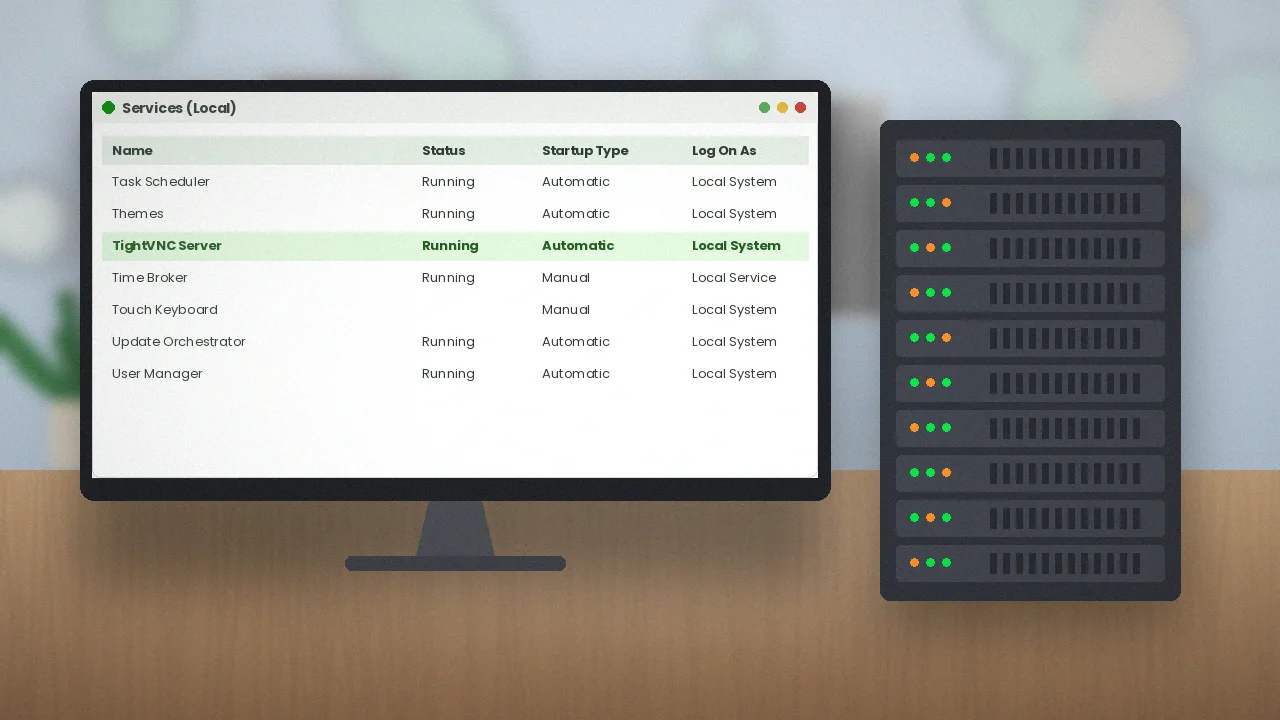
A remote computer is most useful when it can be reached at any time, including after a restart and before anyone has signed in. TightVNC achieves this through service mode, in which the server runs as a Windows service rather than as an ordinary program. This guide explains how service mode differs from application mode, how to install and manage the service, how to work at the sign-in screen and how to keep an always-available server properly protected.
Application Mode and Service Mode in Tightvnc
TightVNC Server can run in two fundamentally different ways.
In application mode, the server is a normal program that runs inside a signed-in user’s session. Someone must start it, it appears in that user’s notification area, and it ends when the user signs out or the computer restarts. This is well suited to attended support, where the person at the host deliberately makes the screen available.
In service mode, the server is registered with the Windows Service Control Manager. It starts automatically when Windows starts, runs under a system account and remains available regardless of who is signed in, or whether anyone is signed in at all. The sign-in screen itself can be viewed and operated remotely.
| Aspect | Application mode | Service mode |
|---|---|---|
| Starts | When a user launches it | Automatically with Windows |
| Available at sign-in screen | No | Yes |
| Survives restart | No | Yes |
| Runs as | The signed-in user | The system account |
| Typical use | Attended support | Unattended access and administration |
When to Choose Service Mode
Service mode is the right choice whenever you need to reach a computer without someone present to assist. Typical examples include an office workstation you use from home, a computer at a relative’s house that you maintain, servers and headless machines in a rack, digital signage and kiosk systems, and laboratory or workshop computers controlling equipment.
Application mode remains the better choice for personal computers where the owner wishes to grant access only occasionally and explicitly. Running a permanently available service on such a machine adds exposure without corresponding benefit.
Installing Tightvnc as a Service
The simplest approach is to select the option to register the server as a system service during installation. The installation walkthrough describes this step. If the software is already installed in application mode, you can register the service afterwards.
- Open the Start menu and find the TightVNC folder.
- Select the entry to install the service. Approve the User Account Control prompt.
- Choose the entry to start the service, or restart the computer.
- Open the service configuration entry to review settings and passwords.
The server executable also accepts command-line switches for these tasks, which administrators use in deployment scripts:
tvnserver.exe -install -silent
tvnserver.exe -start
Matching switches stop and remove the service. Consult the documentation for your release to confirm the exact switch names before scripting them.
Managing the Service in Windows
Once registered, the service appears in the Windows Services console, which you can open by running services.msc. Find TightVNC Server in the list to see whether it is running and how it starts.
- Startup type should normally be Automatic, so the service starts with Windows. Automatic (Delayed Start) can help on computers with many services competing at boot.
- Recovery options define what Windows does if the service stops unexpectedly. Setting the first and second failures to Restart the Service improves resilience on unattended machines.
- Stop and start controls are useful after changing certain settings, such as the main port.
The same can be done from an elevated command prompt:
sc query tvnserver
sc stop tvnserver
sc start tvnserver
Working at the Sign-In Screen
With service mode active, connecting to a computer that nobody is using shows the Windows sign-in screen. To sign in, you usually need to send Ctrl+Alt+Del. Pressing those keys on your own keyboard is intercepted by your local system, so use the viewer’s toolbar control or menu command that sends the combination to the remote computer instead. The viewer connection guide describes these controls.
After you sign in, the session continues seamlessly, because the service follows the active desktop. When you sign out, the sign-in screen returns and remains reachable.
Service mode shares the physical console. If someone is sitting at the computer, they will see everything you do, and you will see their session. This is ideal for support but should be communicated clearly in shared environments.
Securing an Always-Available Tightvnc Server
A service that runs permanently, under a powerful system account, deserves careful protection. Apply each of the following measures.
- Strong, unique primary password, making full use of the eight significant characters.
- Administrative password on the configuration, so local users cannot weaken it.
- Access control rules restricting connections to known address ranges, such as the local subnet or VPN.
- Encrypted access for any connection from outside the local network, using an SSH tunnel or VPN as explained in the security guide.
- Lock on disconnect, so the workstation locks when the last viewer leaves.
- Logging enabled and reviewed, to detect repeated failed attempts.
Remember that file transfer in service mode also runs with system-level rights, which makes these safeguards even more important. The file transfer guide discusses the implications.
Power Settings for Unattended Machines
A service cannot help if the computer is asleep. On machines you need to reach remotely, open Settings > System > Power and set the computer never to sleep when plugged in. Allowing the display to turn off is fine; the server continues to run. For laptops used as remote hosts, keep them connected to power and consider disabling sleep when the lid closes.
Some network adapters support Wake-on-LAN, which allows a sleeping computer to be woken by a special network packet. This requires configuration in the firmware and the adapter settings, and usually works only within the local network or through a VPN, but it can save energy while preserving remote availability.
Updates and Restarts
Windows updates periodically restart the computer. In service mode, TightVNC returns automatically after each restart, which is one of its main advantages. To avoid unexpected interruptions during remote work, set active hours in Windows Update so that restarts happen outside your usual working times. When updating TightVNC itself, the installer stops and restarts the service; reconnect afterwards and confirm that settings and passwords are intact.
Troubleshooting Service Mode
The service will not start
Check the Windows Event Viewer under Windows Logs > Application for errors from the server. A port already in use by another VNC product is a common cause; uninstall the conflicting software or change the port.
A black or frozen screen after sign-in
This can occur when the desktop switches. Disconnecting and reconnecting usually resolves it. Keeping the software updated reduces such issues.
Sign-in combination does not work
Use the viewer’s dedicated control to send the combination rather than pressing the keys locally. If it still fails, confirm that the server is running as a service rather than in application mode.
The troubleshooting guide covers additional connection and display problems in a structured order.
Service Mode on Multi-User and Server Systems
On editions of Windows that allow several people to be signed in at once, such as Windows Server with Remote Desktop Services, it is important to understand which session TightVNC shows. The service captures the physical console session, the one that would appear on a monitor attached directly to the machine. It does not show the separate sessions of users who connected through Remote Desktop. If you need to assist a Remote Desktop user, use the shadowing features of Remote Desktop itself rather than VNC.
On a headless server with no monitor attached, some graphics configurations provide no active display for the service to capture. A display emulator plug or a virtual display driver gives Windows a screen to render, which allows TightVNC to show it.
Auditing Who Can Reach the Service
Because a service is always available, it is worth checking periodically who can reach it. Review the server’s access control list, the Windows Firewall scope and any router or VPN rules together, and confirm that each still reflects current needs. Remove entries for networks or people that no longer require access. Change the primary password when staff with knowledge of it leave, and record the date of every change. These reviews take only a few minutes but prevent the gradual accumulation of forgotten access paths that so often undermines long-running systems.
Next Steps with Tightvnc
Service mode turns TightVNC into a dependable path to computers that must be reachable at any hour. Choose it for unattended machines, manage it through the Services console, configure power settings so the host stays awake and surround it with strong passwords, access rules and encrypted connections. With these foundations in place, an always-available server is both convenient and well protected.