
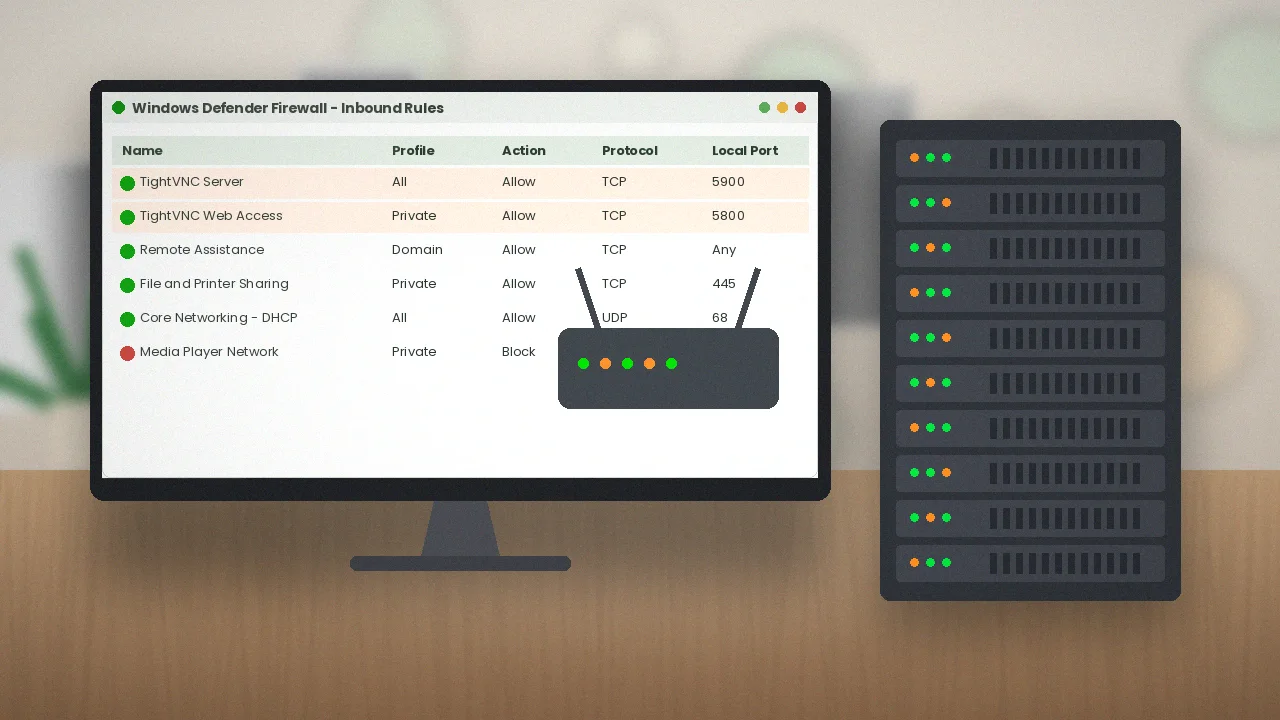
A TightVNC server is only useful if viewers can reach it, and reaching it depends on the network between the two computers. Firewalls, routers and address translation all stand in the way, by design. This guide explains which ports the software uses, how to configure Windows Firewall correctly, when router port forwarding is appropriate and why exposing a VNC port directly to the internet deserves real caution.
The Ports Tightvnc Uses
Every network service listens on a numbered port. TightVNC uses a small, predictable set:
| Port | Protocol | Purpose |
|---|---|---|
| 5900 | TCP | Main server port for viewer connections (display 0) |
| 5901 and above | TCP | Additional displays or custom server ports |
| 5800 | TCP | Optional web access for the legacy Java viewer |
| 5500 | TCP | Viewer in listening mode for reverse connections |
For an ordinary setup, only port 5900 on the host needs to accept connections. Port 5800 should remain closed unless you have a specific use for the web viewer, and port 5500 matters only on a computer running the viewer in listening mode.
Local Network Versus Internet Access
It is helpful to separate two very different scenarios.
On a local network, such as a home or office LAN, the viewer and server share the same private address range. Traffic never leaves the building, so only the host’s own firewall needs to permit the connection. This is the simplest and safest arrangement.
Across the internet, the host usually sits behind a router performing network address translation. The router presents a single public address to the outside world and hides the private addresses of the computers behind it. Incoming connections stop at the router unless it is told where to send them. This is where port forwarding, VPNs and tunnels come into play.
Configuring Windows Firewall for Tightvnc
The TightVNC installer can add a firewall exception automatically. To confirm it, or to create one manually, follow these steps.
- Open the Start menu and search for Windows Defender Firewall with Advanced Security.
- Select Inbound Rules and look for an existing TightVNC entry. If one exists, open it and review its settings.
- To create a rule, choose New Rule, select Port, then TCP, and enter
5900or your custom port. - Select Allow the connection.
- Choose the profiles to which the rule applies. Tick Domain and Private; leave Public unticked unless you have a compelling reason.
- Give the rule a clear name, such as TightVNC Server 5900, and save it.
For an extra layer of control, open the rule’s Scope tab and restrict Remote IP addresses to your local subnet or VPN range. Combined with the access control rules inside the server, described in the server configuration guide, this gives two separate barriers against unwanted connections.
The same task can be performed from an elevated PowerShell prompt, which is handy when preparing several computers:
New-NetFirewallRule -DisplayName "TightVNC Server 5900" -Direction Inbound `
  -Protocol TCP -LocalPort 5900 -Action Allow -Profile Domain,Private `
  -RemoteAddress 192.168.1.0/24
Third-party security suites
If a commercial security product manages the firewall, the Windows rules may be ignored. In that case, create an equivalent rule within the security product itself, allowing the TightVNC server program or port 5900 for trusted networks only.
Router Port Forwarding
Port forwarding instructs the router to pass incoming traffic on a chosen external port to a specific computer inside the network. In principle it is straightforward:
- Give the host a fixed private address, either through a DHCP reservation on the router or a static address in Windows.
- Sign in to the router’s administration page, usually through an address such as
192.168.1.1. - Find the section called Port Forwarding, Virtual Servers or NAT Rules.
- Create a rule that forwards an external TCP port to the host’s private address on port 5900.
- Save the rule and test from a network outside your own, such as a mobile hotspot.
Choosing an external port other than 5900, such as 45900, reduces automated scanning noise, although it is not a security measure in itself. Viewers then connect with the double-colon syntax, for example 203.0.113.10::45900.
Why direct exposure is risky
Forwarding a VNC port straight to the internet makes the server visible to every scanner in the world. Automated tools probe VNC ports constantly, trying common passwords. Classic VNC authentication limits passwords to eight significant characters, and in the free edition the session traffic itself is not encrypted. An exposed server is therefore protected by a single, relatively short secret, and everything you see and type travels in readable form.
Direct port forwarding should be a temporary, carefully considered measure at most. For regular internet access, place the session inside an encrypted channel instead, as described in the SSH tunnel and VPN guide.
Safer Alternatives to Port Forwarding
Virtual private networks
A VPN places your remote device on the same private network as the host. Once connected to the VPN, you reach the host by its private address exactly as though you were in the office, and the VPN encrypts all traffic. Many routers include a VPN server, and modern options such as WireGuard are fast and simple to configure. Only the VPN port is exposed, and it is designed for that purpose.
SSH tunnels
An SSH tunnel forwards a local port on your computer to the VNC port on the host, through an encrypted SSH connection. Only the SSH service is exposed to the internet, and it supports key-based authentication far stronger than a VNC password. The server can then be configured to accept only loopback connections, so it is unreachable except through the tunnel.
Reverse connections
When you cannot change the router at the host’s location, a reverse connection lets the server connect outward to a viewer in listening mode. The listening side still needs an open port, so the same caution applies, but it can be useful for occasional attended support. The viewer connection guide explains listening mode.
Dynamic DNS for Changing Addresses
Most home broadband connections receive a public address that changes from time to time. When it changes, a saved connection stops working. A dynamic DNS service solves this by giving your network a stable host name, such as myoffice.example-ddns.net, which a small client on the router or host keeps pointed at the current address. Many routers support dynamic DNS natively. Whether you use a VPN, an SSH tunnel or forwarding, a stable name makes the connection far easier to maintain.
Testing Connectivity Step by Step
When a connection fails, test each layer in order rather than changing several settings at once.
- Is the server listening? On the host, run
netstat -an | find "5900". A line showing LISTENING confirms the server is active. - Does the local firewall allow it? From another computer on the same network, run
Test-NetConnection 192.168.1.24 -Port 5900in PowerShell. A successful TCP test means the firewall permits the connection. - Does the router forward it? Repeat the test from outside the network against the public address or host name.
- Does the server accept the viewer? If the port is reachable but the session is refused, review the server’s access control rules.
Test-NetConnection 192.168.1.24 -Port 5900
TcpTestSucceeded : True
Working methodically isolates the problem quickly. The troubleshooting guide extends this sequence to authentication, display and performance problems.
Carrier-Grade NAT and Mobile Networks
Some internet providers, particularly mobile carriers, place customers behind carrier-grade NAT. In that arrangement the router itself does not have a public address, so port forwarding on the router cannot work no matter how it is configured. If your router’s external address differs from the address reported by an online “what is my IP” service, you are probably behind carrier-grade NAT. A VPN service that provides a reachable endpoint, or a reverse connection from the host, are the practical solutions in this situation.
Keeping the Network Configuration Tidy
Network rules accumulate over time and are easily forgotten. Document each firewall rule and port forward you create, including why it exists. Review them periodically and remove any that are no longer needed. When you retire a host or uninstall TightVNC, delete the matching rules on both the computer and the router so that no port remains open without purpose.
IPv6 Considerations
Many networks now provide IPv6 addresses alongside IPv4. With IPv6, devices frequently receive globally routable addresses, so address translation no longer hides them in the same way. That can make a host reachable from the internet even without a port forward, provided the router’s IPv6 firewall permits it. Check how your router treats inbound IPv6 traffic and make sure the Windows Firewall rule for TightVNC is restricted to trusted addresses for both protocol versions.
Next Steps with Tightvnc
A well-designed network path makes remote access dependable without making it fragile or exposed. Keep the local network simple, restrict firewall rules to trusted addresses and prefer encrypted channels over direct forwarding for anything that crosses the internet. With the network in order, continue with the security guide to protect the session itself.